
How to Record a Software Demo on Mac: Plan, Capture, Edit, and Export
Published · Updated
Disclosure: I build Toads and Screen Index through StarterBuild. This guide uses Toads as the editing example and includes a built-in Mac capture option.
A useful software demo shows one task from its starting point to its result. The process covers preparation, recording, editing, and export. This guide uses Toads for capture and editing. It also explains the built-in Mac route for a basic recording.
Key takeaways
- Give the viewer one clear outcome.
- Prepare the product state before recording.
- Record a short sample to evaluate the picture and audio.
- Remove mistakes while preserving the steps a viewer needs.
- Review the exported file at the size your audience will see.
What makes a software demo useful?
A software demo explains how a product solves a specific task. The viewer needs to understand the starting state, the action, and the result. A demo can support a sales page, help article, onboarding message, or launch announcement.
The same video rarely suits every destination. A help article can need more context around a setting. A launch page can need a faster overview. Choose the audience before you choose the length.
The workflow here is an editorial recommendation. Product requirements come from the official sources listed at the end. It does not imply measured conversion gains.
1. Write a three-part demo outline
Write the problem, the action, and the result as separate lines. Name the task in the opening sentence. End with the visible result.
Here is an example outline for a project app:
| Part | Example |
|---|---|
| Starting point | A project needs its first task. |
| Action | Create the task and assign its owner. |
| Result | The owner can see the task in the project. |
Use this outline to control scope. A feature that does not explain the chosen task can become another demo.
2. Prepare the product and sample data
Create a demonstration account with sample records. Close unrelated windows. Hide notifications. Remove private tabs, customer names, billing details, and personal messages from the capture area.
Put the product in its starting state. Open the page that the viewer needs first. Prepare any files that the task requires.
Use realistic sample names that stay consistent throughout the take. The viewer can then follow the same item from its creation to its result.
3. Choose the capture area
A window capture keeps the product in focus. A region capture can isolate one part of the interface. A display capture suits a task that moves between apps.
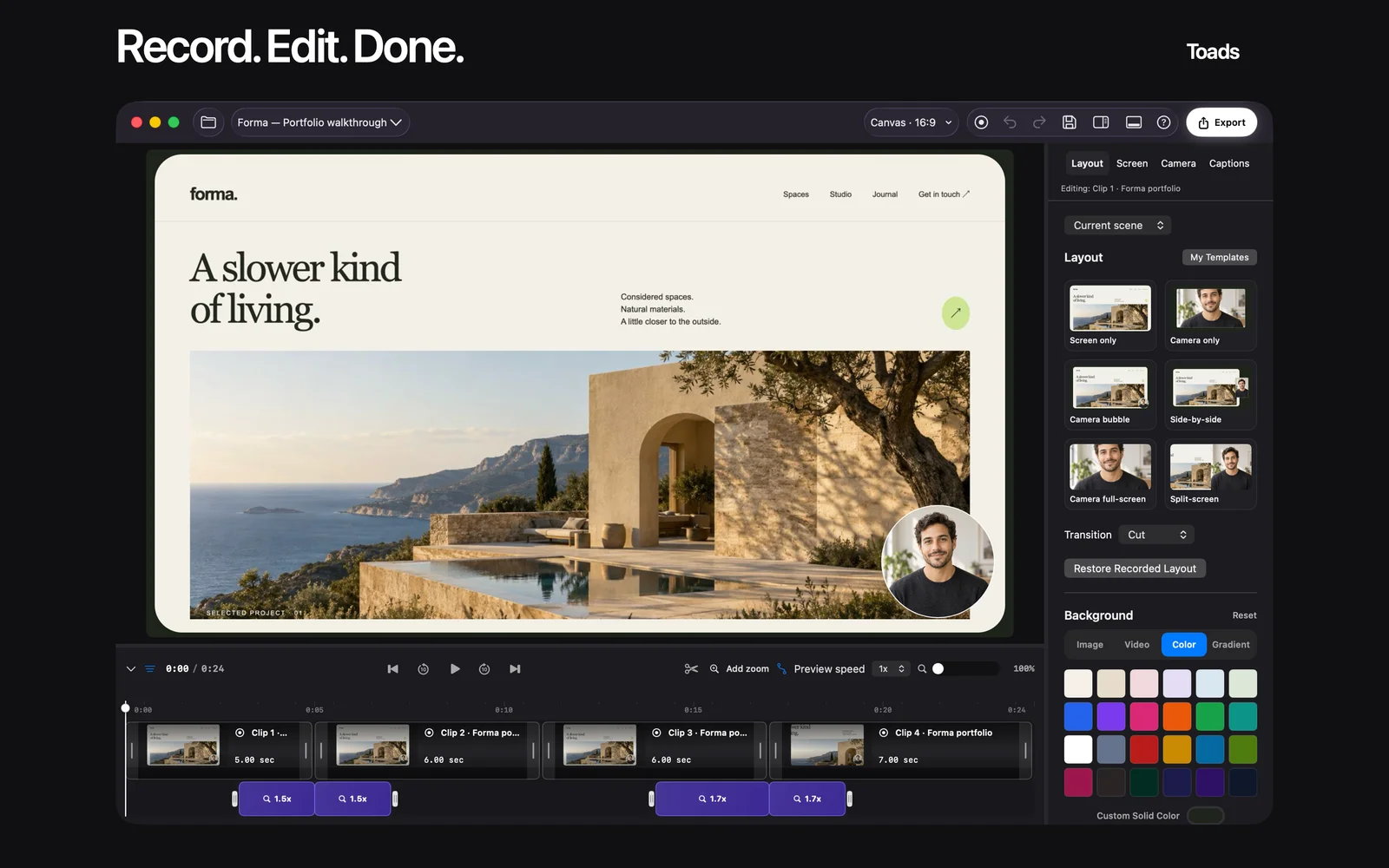
In Toads, choose the capture source that fits the outline. Increase the product text size before recording. Leave enough space around menus and dialogs so the capture area contains them.
The built-in Mac option starts with Shift-Command-5. Apple’s screen recording instructions explain its controls and audio choices. Available options depend on the macOS version.
Choose a dedicated editor for a demo that needs several cuts, emphasis, or changes to the layout. Our recorder shortlist compares the main options.
4. Record a short picture and audio sample
Record a short sample before the full take. Speak one sentence at your normal volume. Perform one click and open one menu.
Play the sample through headphones. Evaluate the microphone level, background sound, text size, and pointer visibility. If the demo needs computer audio, evaluate that input separately.
The sample helps expose a wrong microphone or an unreadable capture before you record the full task. It also gives you a chance to adjust the camera position.
5. Record one task at a steady pace
Start from the prepared product state. Explain the action before the click. Pause briefly after an important result so the viewer can read it.
Keep the pointer away from text that the viewer needs. Use deliberate movements between controls. Stop the take after the result appears.
If you make a mistake, leave a clear pause before repeating the step. The pause gives you a useful place to cut. For a large mistake, record that section again.
6. Edit for clarity
Remove the empty time before the first useful frame. Remove mistakes and repeated explanations. Keep enough context to show how each action leads to the next state.
In Toads, trim or split the recording and arrange the useful clips on the timeline. Add emphasis around small controls. Use camera layouts only where the presenter helps explain the task.
Automatic captions require macOS 26 or later and the relevant Apple Speech assets. If captions are available, review product names and technical terms. Recognition can miss unfamiliar words.
The Claude and MCP guide explains the documented assistant workflow for a compatible direct-download build. Manual editing remains the route for other editions.
7. Export for the destination
Choose the output around its destination. Toads lists MP4, MOV, and GIF exports. Its published movie limit is up to 4K at 60 fps. The maximum is a capability, rather than a requirement for every demo.
Use the final viewing size to judge readability. A narrow article column can make full-screen product text too small. A cropped view of the useful controls can explain more than a wide frame.
Export a review file before the final delivery. Open that file outside the editor. Evaluate it from beginning to end.
A review checklist before publication
| Area | Question |
|---|---|
| Opening | Does the viewer understand the task? |
| Picture | Can the viewer read the required text? |
| Sequence | Does every necessary action remain visible? |
| Audio | Can the viewer hear the explanation clearly? |
| Captions | Are names and technical terms correct? |
| Privacy | Are private details absent from the entire file? |
| Ending | Does the result appear before the final CTA? |
Frequently asked questions
What is the best length for a software demo?
Use the length that explains one task without unnecessary steps. Separate a long workflow into focused videos with clear names.
How do I record a demo without buying an app?
Use the built-in Mac Screenshot app for a basic capture. Read Apple’s current instructions for the available controls.
How do I prevent tiny text in the video?
Increase the product text size and capture a smaller useful area. Review the export at its final display size.
What do I do after a mistake?
Pause before you repeat the step. Remove the mistake during editing. Record the section again if the product state becomes confusing.
How do I add captions in Toads?
Use a Mac with macOS 26 or later and the required Apple Speech assets. Review the generated words before publication.
What does Toads cost?
The website lists a seven-day website trial and a $99 one-time purchase. Review the current offer and release details on the site.
Sources and related guides
Product details reviewed October 23, 2026: Toads, Toads requirements, and Apple screen recording instructions.
Continue with the Mac demo recorder comparison. For still images, read how to search text inside screenshots.