
How to Search Text Inside Screenshots on Mac

Published · Updated
Disclosure: I build Screen Index and Toads through StarterBuild. This guide describes Screen Index features and links to Apple documentation for Live Text.
To find a screenshot by the words inside it, use a screenshot library that recognizes and indexes text. Screen Index can search filenames and recognized text across your chosen screenshot folder. Apple’s Live Text helps you select text in an image you already opened. These features solve different parts of the search.
Key takeaways
- Search the image content. Optical character recognition, or OCR, reads visible letters from an image. An index makes that recognized text searchable across a library.
- Use a distinctive phrase. A product name, heading, or error fragment gives the search a useful clue.
- Keep the original folder. Screen Index works with files in normal Finder folders. You choose the folder that it can access.
- Separate basic search from paid features. Filename and recognized-text search belong to the ongoing free tier. Global Recall belongs to the Lifetime feature set.
- Expect recognition limits. Small, blurred, or low-contrast text can produce incomplete results. If the first phrase fails, search another phrase.
What screenshot text search means
A screenshot stores a picture of text. The filename rarely describes every word in that picture. OCR converts readable image text into searchable data. A screenshot library then connects that data to the file.
Screen Index performs recognition and search on the Mac. Its core library does not require an upload to a developer-operated AI service. Original screenshot files remain in the folder you choose.
Live Text provides another useful function. In Preview, you can select or copy recognized text from an open image. That helps after you find the image. Library search helps you find the image in the first place.
1. Find the screenshot folder
Locate the folder that contains the screenshots you want to search. If you use the standard Mac capture tools, open Shift-Command-5. Inspect Options for the save location.
Keep a small folder for the first evaluation. Include screenshots with text that you recognize. The known content gives you a way to judge the results.
If the screenshots live in several locations, identify those locations before import or folder selection. A search library cannot return files outside the folders that it can access.
2. Give Screen Index access to that folder
Open Screen Index and choose the screenshot folder. Grant access through the Mac folder picker. Leave the originals in the location that you control.
Screen Index requires macOS 26 or later. Some richer description and filing features also depend on compatible hardware and system features. Basic filename and recognized-text search form part of the free library.
For current availability and system requirements, use the Screen Index website. The comparison with Eagle explains the difference between a Finder-based screenshot workflow and a broader asset library.
3. Let recognition finish
Allow the app to process the selected images before judging the search. A newly added screenshot can need time for recognition. A folder that the app cannot access will not provide useful results.
Choose an image with large, clear text for the first search. Use a phrase that appears inside that image rather than in its filename. This exercise separates content search from a filename match.
4. Search with a useful clue
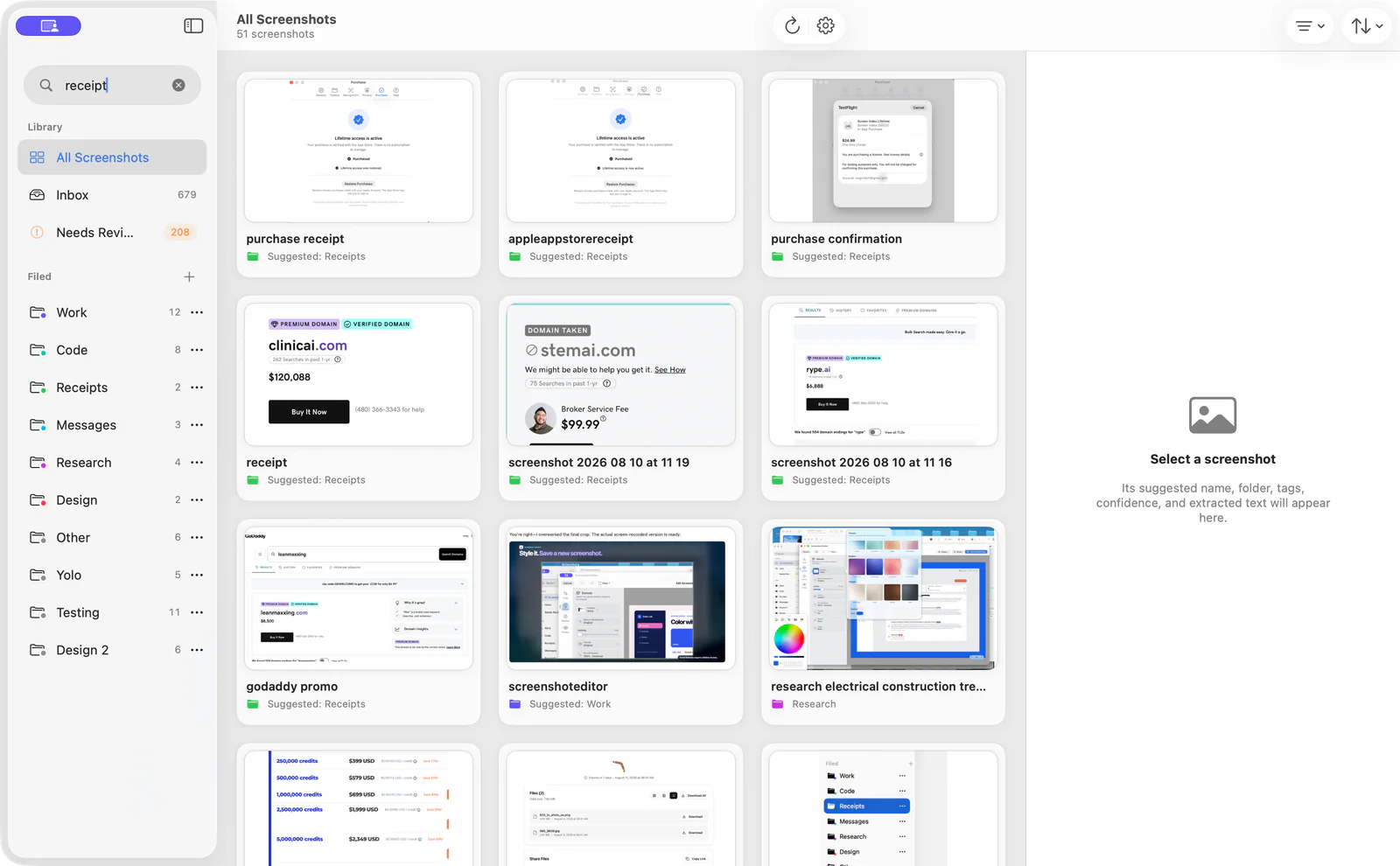
Enter a distinctive phrase in the Library search. Start with a short heading, a product name, or a recognizable error fragment. Open the result. Compare it with the words in the image.
If the full phrase produces no match, shorten it to a clear word. If a word appears in many images, add a second distinctive term. Recognition can read a clear heading more accurately than tiny text in the background.
The optional Global Recall interface adds a separate shortcut-based workflow. The website documents Option-Space for that feature. Use Library search for the free recognized-text workflow.
5. Reuse the screenshot
Open the matching screenshot. Drag it into the app that needs it. Use the available editing tools to prepare a useful crop or hide private information before sharing.
Use Finder to locate the original file. Keep a separate edited copy if you need to preserve the original appearance. Review the final image before sending it to another person.
If Capture Context is enabled, Screen Index can retain source information for supported captures. An exact webpage depends on a captured URL and the required browser permission. Existing images do not automatically reveal the page that created them.
Why a screenshot does not appear in search
| What you see | Possible cause | Next action |
|---|---|---|
| A new image has no text match | Recognition is incomplete. | Allow processing to finish, then repeat the search. |
| A whole folder is absent | The app lacks access to that folder. | Review the selected folder and its access. |
| The filename matches, but the visible phrase does not | OCR missed or misread the phrase. | Try a larger, clearer word from the image. |
| There are many weak matches | The search term is too common. | Use a distinctive product name or heading. |
| An old screenshot has no source URL | The capture did not retain an exact webpage. | Use the available source information or the original file. |
How to copy text from an image you already found
Open the screenshot in Preview. Position the pointer over readable text. Select the text. Copy it with Command-C.
Apple’s Live Text instructions describe the available actions. Live Text is useful for a single image. It does not replace a dedicated search workflow across a screenshot folder.
A small evaluation with your own images
Choose several screenshots with different text sizes. Record one visible phrase from each image. Search those phrases in the Library and record which images appear.
Include an image with small or low-contrast text. This example helps you understand recognition limits in your own files. The useful result is a repeatable search habit, rather than a promised accuracy percentage.
Frequently asked questions
What is OCR?
OCR means optical character recognition. It converts readable text in an image into data that an app can search or copy.
How do I search words inside a screenshot folder?
Choose the folder in Screen Index. Allow recognition to finish. Search for a phrase visible inside one of the images.
What does the free Screen Index tier include?
The website lists Library, Inbox, filename and recognized-text search, manual folders and tags, file actions, and basic editing. Global Recall belongs to Lifetime features.
How does the Lifetime trial start?
The 14-day trial starts after Screen Index successfully processes your first new screenshot. A download or scan of existing images does not start that trial.
What happens to my original screenshots?
The originals stay in the Finder folder you choose. Screen Index uses scoped access to work with those files.
How do I improve a failed search?
Allow recognition to finish. Search a larger, clearer word from the image. Review folder access if the image is absent from the Library.
What is the difference between Screen Index and Live Text?
Screen Index searches a screenshot library. Live Text helps you use recognized text in an image that you already opened.
Sources and related guides
Details reviewed October 23, 2026: Screen Index, Screen Index text-search guide, and Apple Live Text in Preview.
Compare Screen Index and Eagle. For video, read how to record a software demo on Mac.