
Best Mac Screen Recorders for Product Demos in 2026: the buyer’s shortlist
Published · Updated
Disclosure: I build Toads and Screen Index through StarterBuild. This shortlist includes my product. The recommendations reflect the uses described here.
Toads is our first pick for Mac product demos that need recording, timeline edits, and a finished video in one app. Screen Studio suits presentation-focused demos. CleanShot X suits people who switch between screenshots and video. OBS suits live demos with several sources. The best choice depends on the work after you stop recording, your Mac, and your budget.
Key takeaways
- Choose around the finished demo. A recorder must capture the screen clearly. The editor must also help you remove mistakes and explain the useful action.
- Toads combines capture and editing. Its website lists a $99 one-time purchase and a seven-day website trial. Captions have stricter system requirements than recording.
- CleanShot X includes video editing. Its Studio Mode adds smart zooms. It belongs on the list for people who also need screenshot tools.
- OBS is the free option for live production. Its scenes combine several sources. Budget time for setup and any separate editing work.
- Treat assistant editing as an edition-specific feature. Toads documents MCP for its direct-download edition. Review the available release before choosing it for that feature.
What a product demo recorder does
A product demo recorder captures a task on your screen so another person can understand the result. That task can show a new feature, explain a workflow, or answer a sales question. A useful demo gives the viewer enough detail to repeat the action.
Capture starts the work. Editing controls the pace, removes mistakes, and draws attention to details. A recorder with a built-in editor can keep those steps together. A live production tool can combine sources during the take. Those are different ways to reach a finished video.
Start with the destination. A help article needs readable text and a clear sequence. A launch video can need tighter framing and camera layouts. A live webinar needs source controls and reliable audio throughout the session.
How we ranked these Mac screen recorders
We reviewed official product pages and documentation on October 23, 2026. This is a selection guide based on product fit. We did not run shared performance benchmarks or compare export speed.
We used five criteria:
- Capture: documented screen, camera, microphone, and system-audio support.
- Editing: cuts, clip arrangement, zooms, and the route from a take to a finished video.
- Cost: published prices, update terms, and extra services.
- Mac support: the operating system and any separate feature requirements.
- Control: local files, export choices, and the boundaries of assistant access.
Toads leads for a specific job: record a product task, edit it on the Mac, and export the result. The other choices lead for different jobs. Review scores and customer results are absent because we do not have a comparable dataset.
The best Mac screen recorders for product demos in 2026
1. Toads, best for recording and editing in one Mac app
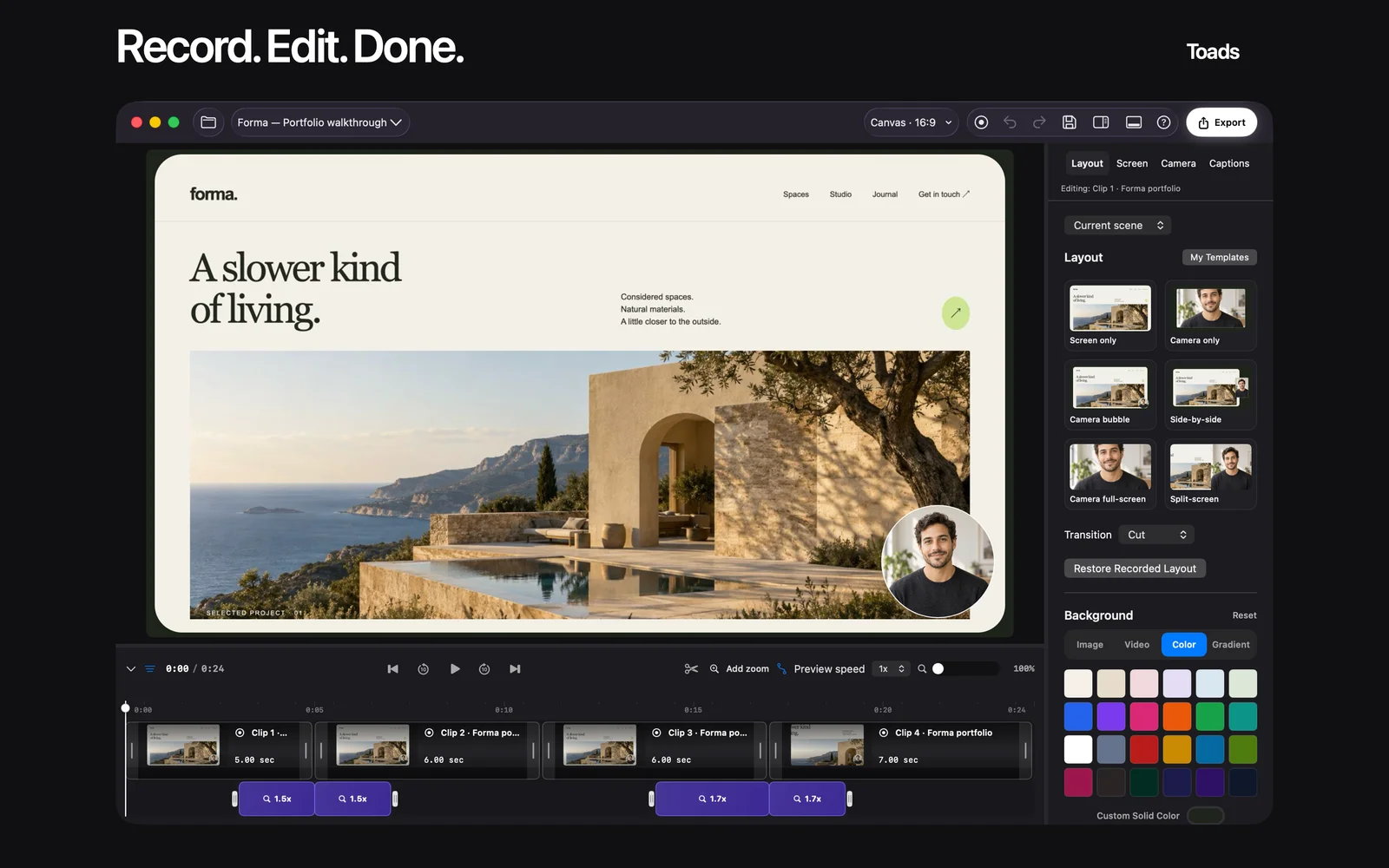
Toads captures a display, window, or selected area. You can include a camera and audio, then trim, split, and reorder the footage. Zooms and cursor effects help a viewer follow small actions. Camera layouts and backgrounds help frame the presenter alongside the product.
The main benefit is the short path between a take and an edited video. You can keep useful footage, remove a mistake, and export from the same app. That fits a founder who records a feature explanation and then adjusts the pace before publishing it.
The website lists $99 once, a seven-day website trial, and future Mac app updates. Toads requires macOS 15 or later. Automatic captions require macOS 26 or later and the relevant Apple Speech assets. Its published export options include MP4, MOV, and GIF, with movie exports up to 4K at 60 fps.
The direct-download edition also has a documented MCP workflow for assistant editing. That connection has its own release and access requirements. The Mac App Store edition excludes MCP. Use the Claude setup guide before planning an assistant-led project.
Best suited for: Mac users who want to record a product task and continue into timeline editing. Review the exact feature requirements and current download before buying.
2. Screen Studio, best for presentation-focused product demos
Screen Studio emphasizes automatic zooms, framing, and motion around a screen recording. Its product page recommends macOS 13.1 or later. It is a strong candidate for a demo where visual presentation drives the choice.
Consider how often you need to change the frame after the first take. A feature tour can begin with a wide view, focus on a control, and return to the result. Presentation controls matter more in that job than support for a large live scene collection.
The useful comparison with Toads is the editing experience around your own footage. Record the same product action in each app. Compare text readability, the focus of zooms, camera placement, and the steps needed to reach your target format. A feature list alone cannot show which editing process fits your habits.
Use the current purchase page linked from the Screen Studio website for its offer. Old roundups can preserve outdated prices and terms.
Best suited for: Creators who want a screen recording with deliberate framing and motion. Compare the editor with the actual demo you plan to publish.
3. CleanShot X, best for screenshots and video in the same toolkit
CleanShot X combines screenshot capture and annotation with screen recording. Its current video tools include Studio Mode and smart zooms. That makes it useful for a support workflow that needs an annotated still for one answer and a short demo for another.
The pricing page lists Basic at $35, with one year of updates. It lists an optional $19 annual update renewal. Pro adds cloud and team features, with a displayed annual billing option of $10 per user per month. The page states macOS 13 or later. Taxes can change the checkout total.
Choose the plan around your actual use of sharing and team controls. Local capture and hosted sharing are separate decisions. A team that needs branded links has different requirements from a solo user who exports a file.
Best suited for: People who need screenshots and edited recordings throughout the workday. Include update terms and cloud requirements in the comparison.
4. OBS Studio, best for live demos with multiple sources
OBS Studio is free, open-source software for recording and live streaming. Its scene system can combine windows, cameras, images, and audio sources. The current download page lists macOS 13 or newer.
OBS fits a demo that moves between several prepared views. You can plan those views as scenes and switch during the session. Source and audio controls matter especially for a webinar or live walkthrough.
For a short edited product video, account for the work after capture. Decide where you will remove mistakes, change pacing, and prepare the final file. A free recorder can still require a separate editor and more setup time.
Best suited for: Live presenters who need several sources and scene controls. For a short edited demo, compare the complete capture-to-export process.
Side-by-side comparison
Prices and requirements reflect the sources reviewed on October 23, 2026. This table compares documented fit rather than measured performance.
| App | Best fit | Price model | Mac requirement |
|---|---|---|---|
| Toads | Capture and timeline editing | $99 once. Website advertises a seven-day trial. | macOS 15+. Automatic captions require 26+. |
| Screen Studio | Presentation-focused demos | See the current website purchase offer. | macOS 13.1+ recommended |
| CleanShot X | Screenshots and edited recordings | Basic $35. Updates and Pro terms differ. | macOS 13+ |
| OBS Studio | Scenes and live production | Free and open source | macOS 13+ |
Which recorder fits your use case?
| Your task | Start with | Evaluate first |
|---|---|---|
| Record and edit a feature walkthrough | Toads | Cuts, readability, and export |
| Create a presentation-focused launch demo | Screen Studio or Toads | Zooms, framing, and camera placement |
| Make still images and short videos for support | CleanShot X | Annotation and video workflow |
| Present a live demo with several sources | OBS Studio | Scenes and audio controls |
A practical demo brief
Use one small task for the comparison. For example, show a viewer how to create a project, add an item, and see the result. Use sample account data. Record one mistake on purpose so you can evaluate the editing process.
Judge the exported file at its intended viewing size. The viewer must read the text, follow the pointer, and hear the explanation. Our software demo guide provides a repeatable sequence.
Frequently asked questions
What is the best Mac recorder for an edited product demo?
Our pick is Toads for capture and timeline editing in one app. Screen Studio also fits presentation-focused demos.
What is the best free choice?
OBS Studio is free and supports recording and live streaming. Apple’s built-in recorder also handles basic capture.
How much does Toads cost?
The website lists $99 once and a seven-day website trial. Read the current offer and release details before purchase.
How do I choose between 1080p and 4K?
Choose a resolution that keeps the product text readable at the final display size. A readable 1080p file can be more useful than a larger file with tiny text.
What Mac do I need for Toads captions?
Automatic captions require macOS 26 or later and the relevant Apple Speech assets. The recorder itself supports macOS 15 or later.
How do I use an assistant with Toads?
Start with the documented direct-download MCP workflow and its release requirements. The Mac App Store edition excludes MCP.
Sources and related guides
Product sources: Toads, Toads MCP, Toads requirements, Screen Studio, CleanShot X, CleanShot pricing, and OBS Studio.
Continue with recording a software demo or the Claude and MCP setup guide.