
Screen Index vs. Eagle: Which Screenshot Library Fits Your Workflow?

Published · Updated
Disclosure: I build Screen Index and Toads through StarterBuild. This is a maker’s comparison based on official documentation, rather than an independent performance benchmark.
Choose Screen Index for a Mac screenshot workflow that keeps originals in normal Finder folders. Choose Eagle for a broader creative asset library across Mac and Windows. Both products offer search and organization tools. The useful decision is where your files live, which formats you collect, and how you want to reuse them.
Key takeaways
- Screen Index centers on saved screenshots. Its Library can search filenames and recognized text. Original files remain in your chosen Finder folder.
- Eagle centers on a broader asset collection. Its website covers images, video, audio, fonts, browser collection, and asset search.
- The library model matters. Screen Index works around your folders. Eagle uses an Eagle library that you manage and back up.
- Their pricing models differ. Screen Index has ongoing free features and a one-time Lifetime upgrade. Eagle sells a one-time license for two devices.
- Evaluate your own files. This comparison does not report search-speed or recognition-accuracy benchmarks. A small collection can show which workflow fits your work.
What are you trying to organize?
For a screenshot-heavy job, the main task is recall. You remember a phrase, a screen, or a detail. You want the matching image so you can use it in a message, document, or presentation.
A creative reference collection has a wider scope. You can need photographs, interface examples, video clips, audio, fonts, and web references. Collection tools and format support can matter as much as text search.
Name your most common task before choosing an app. A screenshot library and a broad asset manager overlap, but their priorities differ.
How we compared Screen Index and Eagle
We reviewed official product pages, pricing information, and library documentation on October 23, 2026. We compared five practical criteria:
- File ownership and location: the relationship between the app, its library, and original files.
- Search: the published ways to find an image or asset.
- Organization: folders, tags, and collection tools.
- Platform: supported operating systems and feature requirements.
- Cost: free access, paid upgrades, and license terms.
We did not run both apps against a shared library or measure accuracy, latency, or memory use. The recommendations below are judgments about workflow fit.
Screen Index: a screenshot workflow around Finder
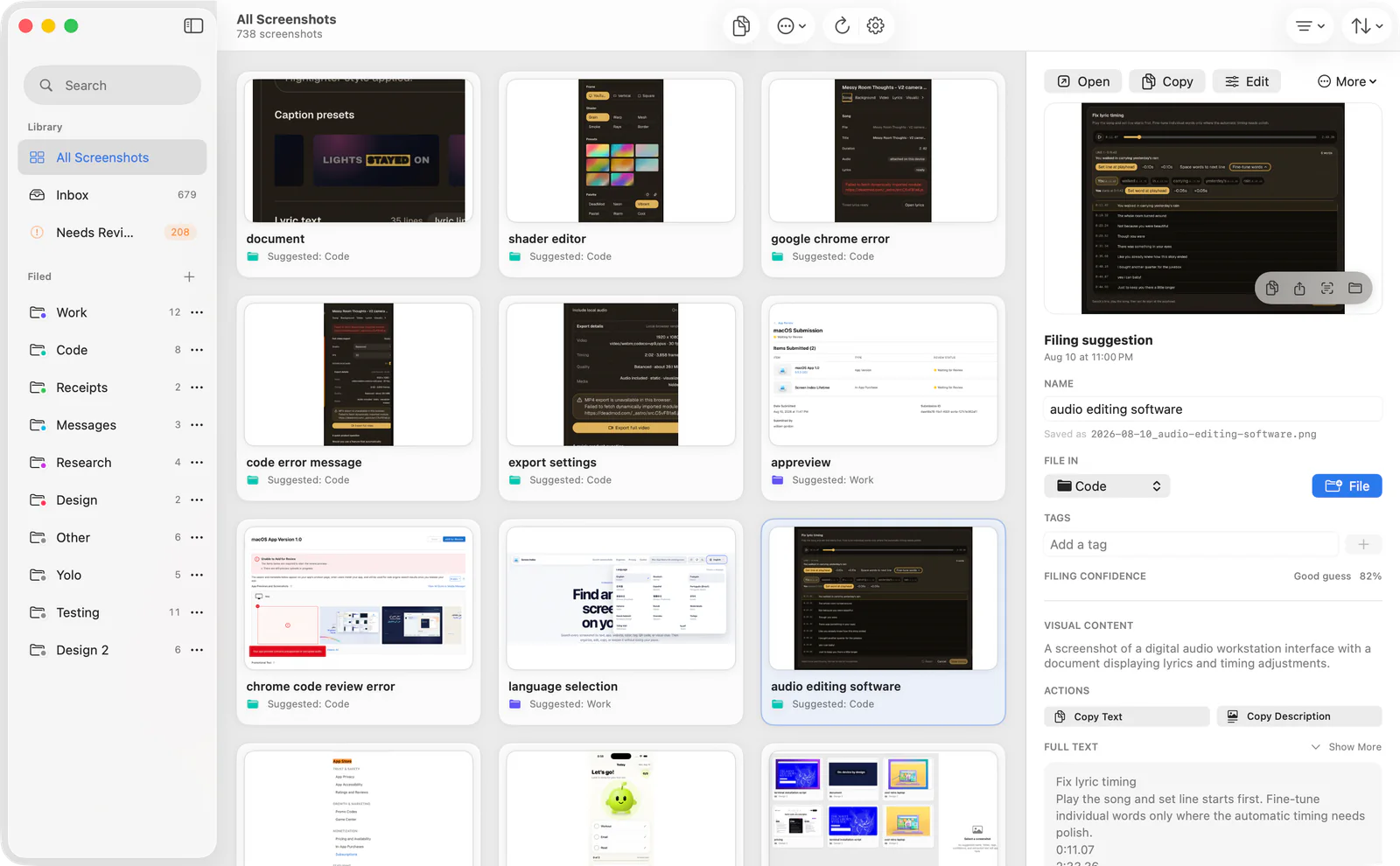
Screen Index works with a screenshot folder that you choose. Its core Library includes filename and recognized-text search, manual folders and tags, file actions, and basic editing. The screenshots remain normal files in Finder.
This model suits a person who already relies on a folder structure. You can search the screenshots in that structure and reuse the result. The app adds recognition and a Library interface around the files.
Recognition and search run on the Mac. Screen Index states that it does not upload the screenshot library to a developer-operated AI service. An image that you deliberately share with another app follows that app’s behavior.
The paid Lifetime feature set adds functions such as Global Recall. Its 14-day trial begins after the first successfully processed new screenshot. The ongoing free features continue after that trial. The website lists macOS 26 or later, with additional system requirements for some richer features.
Best suited for: Mac users whose main task is finding and reusing screenshots. Start with the free Library workflow before deciding whether you need Lifetime features.
Eagle: a broader creative asset library
Eagle serves a wider collection of creative files. Its website describes browser collection, folders, tags, smart folders, and multiple search tools. It supports Mac and Windows. The displayed Mac download supports macOS 10.15 or later.
The Eagle library documentation covers library creation, backup, and transfer. Include that library in your file-management plan. Existing Finder folders and an app-managed collection are different organizational models.
Eagle’s store describes a one-time purchase, future updates, and two devices per license. Use the current checkout for the price in your region. Evaluate any model or provider requirements separately for the AI features you intend to use.
Best suited for: Creatives who collect several asset formats or work across Mac and Windows. Include browser collection and library backup in the evaluation.
Side-by-side comparison
| Criterion | Screen Index | Eagle |
|---|---|---|
| Main task | Find, organize, and reuse Mac screenshots. | Collect and organize creative assets. |
| File model | Original screenshots in normal Finder folders. | An Eagle library with its own backup workflow. |
| Search | Filename and recognized-text search. Richer features depend on the feature set. | Asset search and filters, plus published AI search features. |
| Platforms | macOS 26+ | Mac and Windows. Current Mac download lists 10.15+. |
| Pricing model | Ongoing free tier and one-time Lifetime upgrade. | One-time license for two devices, with future updates. |
| Useful first evaluation | Find a saved screenshot from a phrase inside it. | Collect and organize a mixed set of creative files. |
Which library fits your use case?
| Your regular task | Start with | Main reason |
|---|---|---|
| Recall text-heavy Mac screenshots | Screen Index | Recognized-text search around your screenshot folders |
| Keep existing Finder folders central | Screen Index | Originals stay in those folders |
| Collect a wide range of creative assets | Eagle | Broader asset-management scope |
| Use one asset tool on Mac and Windows | Eagle | Published support for both platforms |
| Use an older Mac operating system | Eagle, subject to current requirements | Screen Index requires macOS 26+ |
A fair comparison with your own collection
Choose a small set of files that represents your work. Include screenshots with clear text, a screenshot with small text, and any other formats you use regularly.
Complete the same four tasks in each app:
- Find an image from a distinctive clue.
- Put the image in a useful category.
- Reuse the image in another app.
- Locate the files that you need to back up.
Record the result and any extra steps. Judge the work you repeat every week. A large feature list has limited value if you cannot reach the file that you need.
The screenshot text-search guide provides a step-by-step Screen Index example.
Frequently asked questions
What is the main difference between Screen Index and Eagle?
Screen Index focuses on a Mac screenshot workflow with originals in Finder folders. Eagle focuses on a broader creative asset collection.
How much of Screen Index is free?
The free tier includes Library, Inbox, filename and recognized-text search, manual folders and tags, file actions, and basic editing. Lifetime adds features such as Global Recall.
What does the Eagle license include?
Its store describes a one-time license for two devices with future updates. Read the current store offer for pricing and terms.
How do I search text inside screenshots?
In Screen Index, select the screenshot folder and allow recognition to finish. Search a phrase that appears inside a known image.
What Mac does Screen Index require?
The website lists macOS 26 or later. Some richer features also need compatible hardware or system capabilities.
How do I choose between the two?
Compare the tasks that you repeat, the formats that you collect, and the library model that you prefer. Use your own files for the decision.
Sources and related guides
Sources reviewed October 23, 2026: Screen Index, Eagle, Eagle store, and Eagle library documentation.
Continue with searching screenshot text on Mac or recording a software demo.